
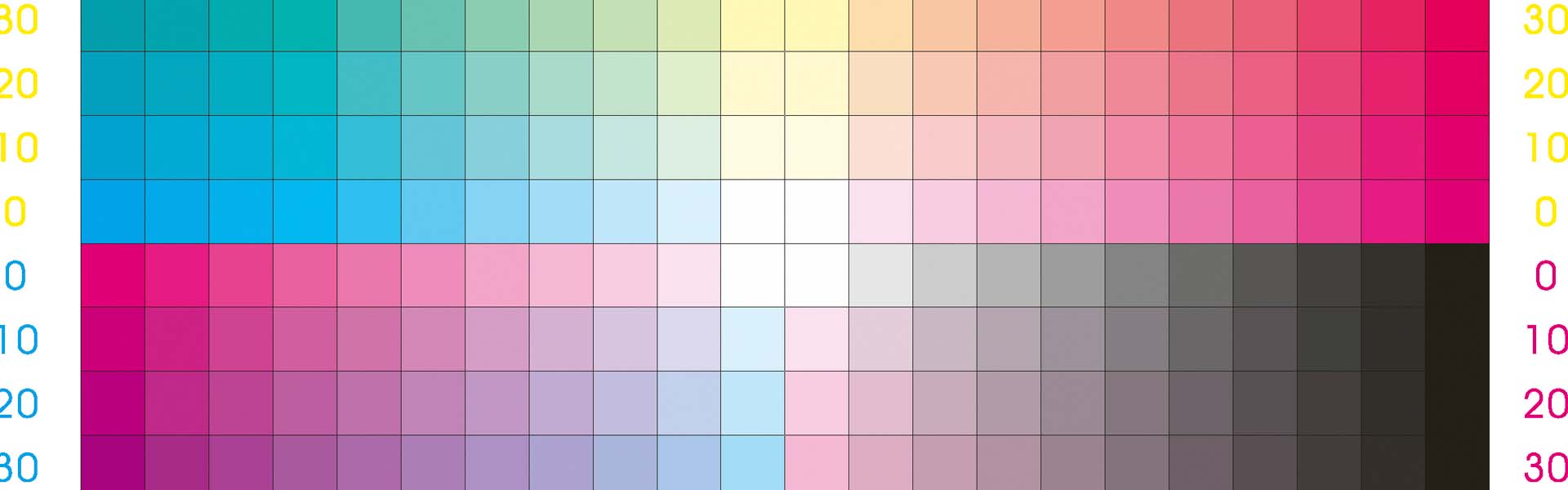
RGB colour applies to digital files in the same way that CMYK colour applies to print files. The former can only be viewed on a device: a smartphone, tablet or computer. The latter results in a printed design that can be physically held.
Do you know how to obtain a CMYK equivalent to the RGB colour in a digital file?
RGB colour is created from three additive primary colours: red, green and blue. When all three are combined in equal proportion, the result is white light.
In contrast, CMYK colour is obtained subtractively from three primary colours: cyan, magenta and yellow, to which black is added. Black is essential to achieve and reproduce deep blacks and shadows. Simply combining cyan, magenta and yellow results in a dark brown, similar to a faded black with low visual impact.
However, colour matching between RGB and CMYK is not exact. It is possible to work in both versions—for example, for a brochure and a website—but our recommendation is to start in CMYK. This is mainly because converting print files from CMYK to RGB is more accurate than the reverse process.
How to convert RGB to CMYK in the most common design software
In most software, RGB is the default colour mode. For this reason, before preparing files for print production, you should convert them. We recommend doing this as early as possible to avoid colour inconsistencies that may appear unprofessional. Your designs must look consistent across all formats.
In Adobe Photoshop CS6, follow these steps:
- Select Object in the top menu bar.
- Select Image
- Then click Mode.
- Choose CMYK Color.
In Adobe Illustrator CS6, the process is very similar:
- Click File in the menu bar.
- Select Document Color Mode.
- Locate the Edit Colors option and click on it.
- Choose CMYK Color.
In Adobe InDesign, the steps are also similar:
- Go to the File menu.
- Open the Document Setup or colour settings.
- Select CMYK Color.
Finally, in CorelDRAW, follow this guide:
- Open the Fill Tool.
- Access the Fill Colour dialog box.
- Choose CMYK (other options include greyscale, RGB and HLS).
- Confirm the changes by clicking OK.
In all these cases, the colour conversion is performed automatically. However, keep in mind that these conversions are not always identical: some RGB colours cannot be accurately reproduced in print.
For this reason, you may need to use a manual colour conversion chart. This includes the equivalences between CMYK and RGB, allowing you to adjust values more precisely. If a specific colour is critical for your business, apply a more controlled process by defining exact percentages of cyan, magenta, yellow and black to achieve the desired result.
We help you achieve it
At Artyplan, we support each client individually and provide specialised professionals who help convert colours from RGB to CMYK in your print files. We guide your business throughout the design process to ensure consistent and high-quality results.