In digital marketing and graphic design, using high-quality images is essential to ensure effective communication with your target audience. However, it is common to need to resize images to adapt them to different formats without losing sharpness or causing pixelation. In this guide, we explain how to do it online or with Photoshop in a simple and effective way.
Why is it important to resize images correctly?
Unlike digital use, where images can display well on lower-resolution screens, print requires high quality to prevent images from appearing blurry or pixelated. Some key factors to consider include:
- Appropriate resolution: For print, it is recommended to work with images of at least 300 dpi (dots per inch).
- Correct format: TIFF, PSD or PDF files are the most suitable for high-quality print.
- Proportional scaling: Adjusting the image without distorting its proportions is essential for an optimal result.
Resizing images online without losing quality
There are free tools that allow you to change the size of an image without affecting its resolution. Some of the best options include:
-
TinyPNG
- Compresses and resizes images without affecting visual quality.
- Supports PNG and JPG formats.
- Ideal for optimising images for web.
-
Adobe Express (formerly Spark)
- Resizes and optimises images for different uses, including print.
- Compatible with multiple image formats.
-
ILoveIMG
- Resizes multiple images at once.
- Allows you to customise the reduction percentage.
-
Canva
- Although primarily a design tool, it also allows image resizing while maintaining quality.
- Ideal for marketing teams creating content for social media.
Resizing images in Photoshop without losing quality
If you need greater control over the process, Photoshop is the best option. Follow these steps to resize correctly:
-
Open the image in Photoshop
- Go to File >Open and select the image you want to edit.
-
Access the resize option
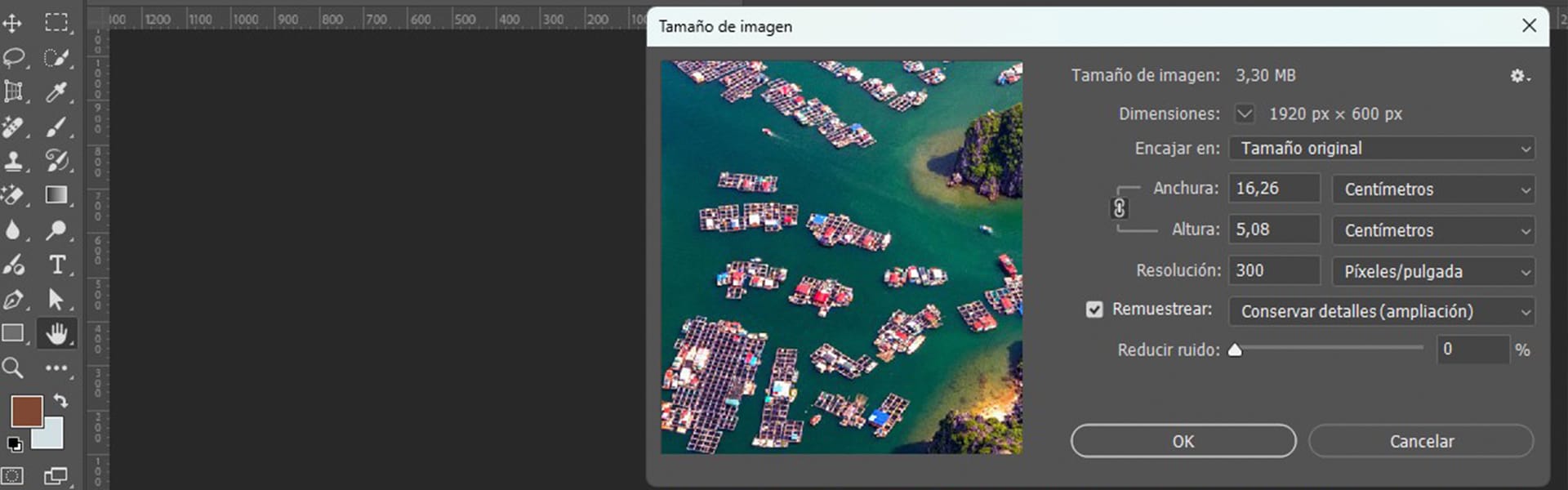
- Go to Image >Image Size.
- A dialogue box with adjustment options will open.
-
Adjust dimensions without losing quality
- Tick the Resample box.
- Under Resample, select Preserve Details (enlargement) or Bicubic Smoother.
- Enter the new size in pixels and check the resolution (300 dpi recommended for print and 72 dpi for web).
-
Save the image with the best quality
- Go to File>Save As and select the appropriate format:
- JPG: For optimised web content.
- PNG: To maintain transparency and quality.
- TIFF or PSD: For print jobs.
- Set the quality to maximum and save the file.
Enlarging images with Photoshop AI
Adobe has incorporated AI-based improvements to optimise image enlargement without losing detail. Follow these steps:
- Duplicate the image layer to work on a copy.
- Go to Filter> Sharpen> Smart Sharpen to enhance details before enlarging.
- Adjust the image via Image Size, selecting Preserve Details 2.0.
- Apply Filter > Noise > Reduce Noise if you notice imperfections after enlargement.
Final tips for optimal resizing
When resizing images, it is essential to maintain both quality and performance, especially for websites. Here are some practical recommendations to achieve optimal results without compromising quality while ensuring fast loading times:
- Avoid enlarging small images, as quality will deteriorate.
- Use AI-based tools such as Let’s Enhance to improve the quality of resized images.
- For web use, balance file size and quality to optimise loading speed.
With these methods and tools, you can resize images without compromising quality, ensuring visually attractive and professional content across all your marketing campaigns.